 guide
Use Claude Code: start your first task in a practice folder
Translated from Korean. View original. Some screenshots are available in Korean only.
Claude Code is an AI tool that can read and edit files in a project and run commands. This guide starts in a terminal. Practice by listing files in a practice folder, creating a new file and inspecting changes yourself.
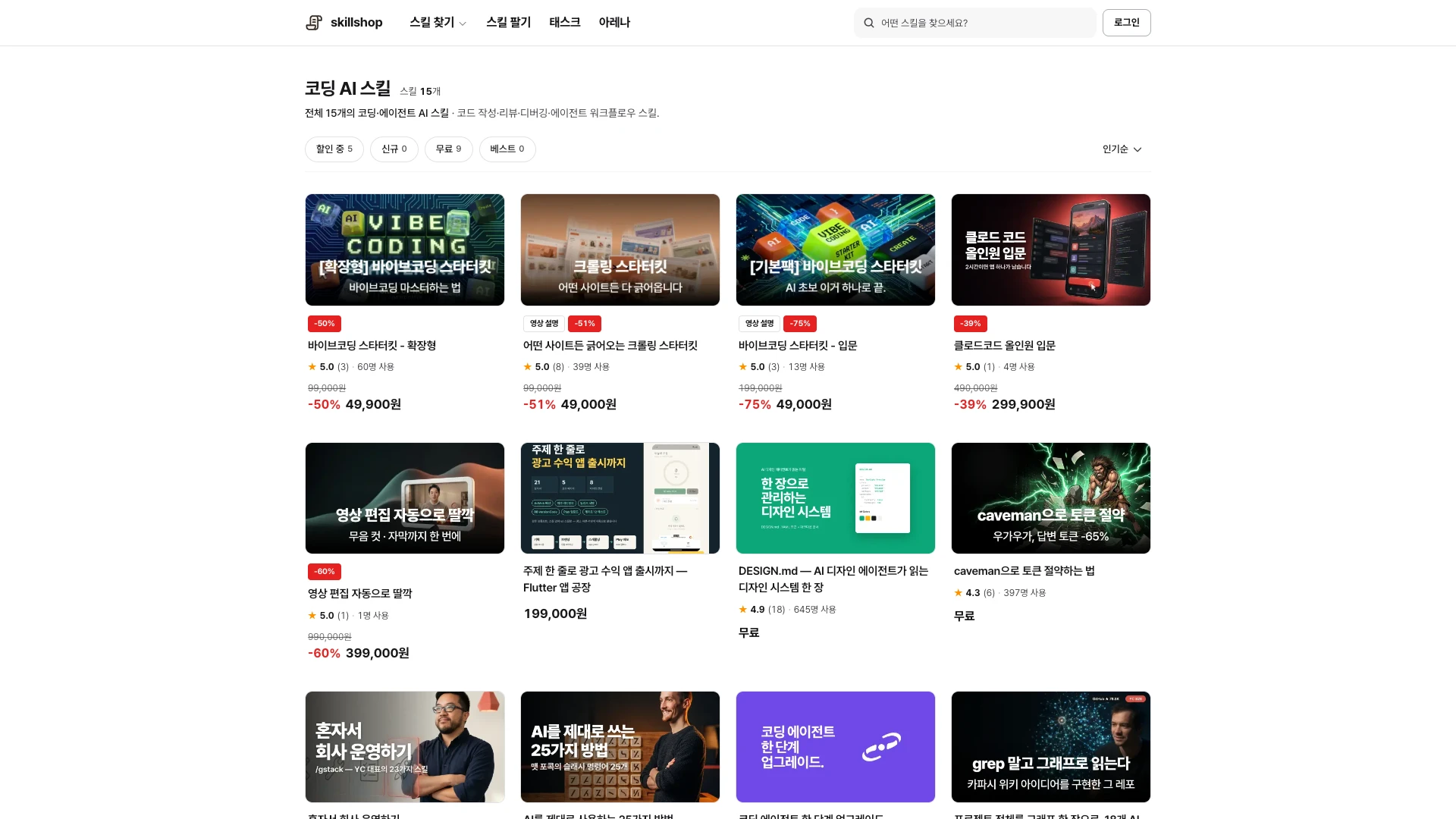
Browse relevant skills and examples on Skillshop.
View original Korean screenshot
What can Claude Code do?
Claude Code can read and edit code in a working folder and run commands. It can also handle non-coding work such as organizing documents and converting files, and accepts requests in Korean.
Capabilities depend on available tools and permissions. This guide uses a terminal; consult the official instructions for installation and supported environments.
- Results appear as text in the conversation
- You copy and paste them
- Access varies with uploads and connections
- Results can be saved as changed files
- Manual copying may be unnecessary
- It can read the working folder
Prepare an account and practice folder
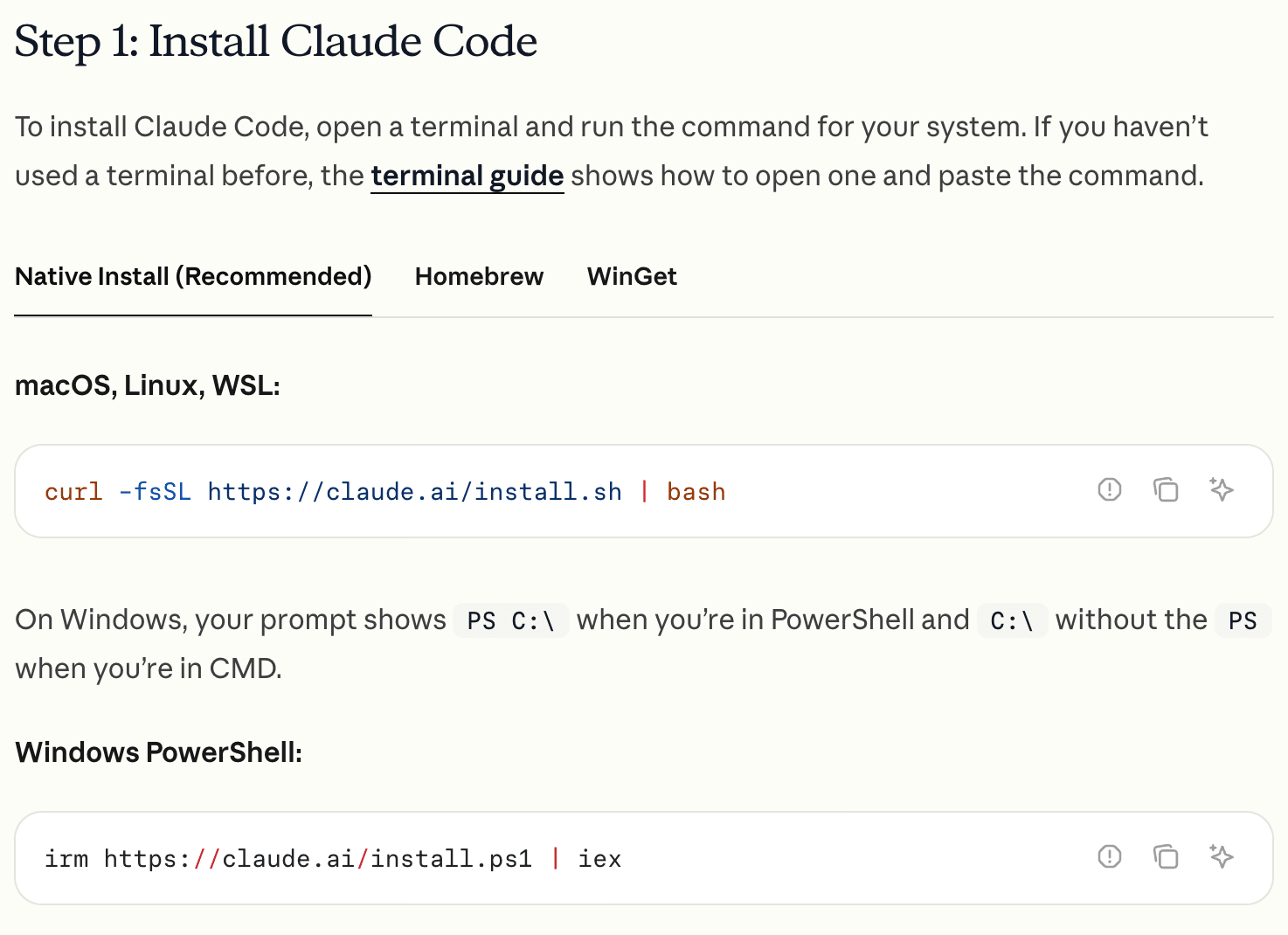
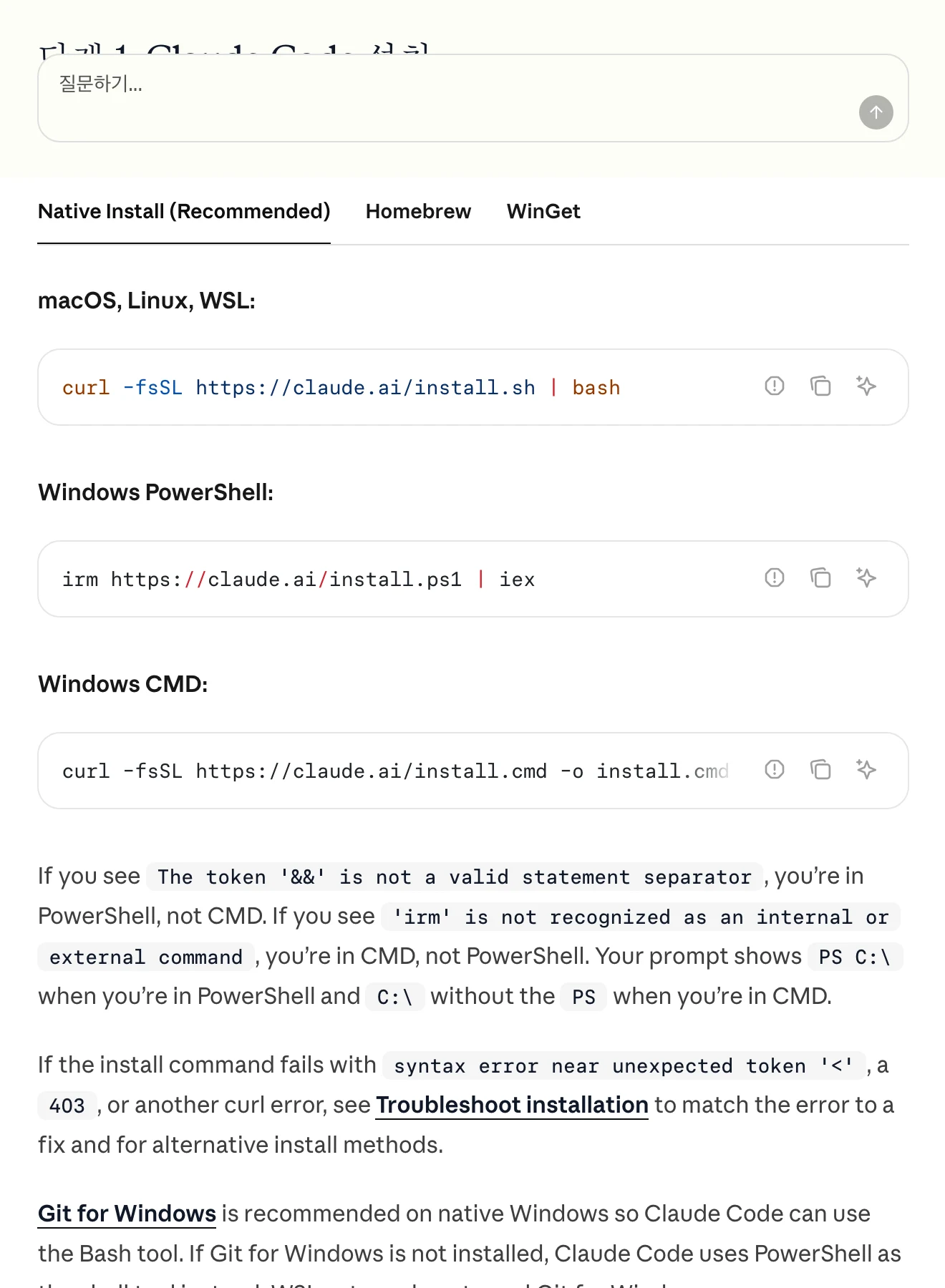
Consult the official documentation for the installation method and account for your operating system. If a terminal is new to you, first learn where to enter commands and how to move into the working folder.
Copy a few non-sensitive files into a practice folder. Check that you are in that folder before starting, and try changes to important originals on copies first.
View original Korean screenshot
Try reading, creating and editing files in order
Start with a read-only request such as “List the files in this folder and explain their purposes. Do not change any files.” Check which files the AI says it inspected.
Next ask it to create one new document, then open it yourself. Before modifying existing files, keep a copy or version history and compare the before and after.
Specify the inputs and output format
“Combine the CSVs in this folder and save result.csv” defines the scope more clearly than “organize my data.” Include files it must not change and conditions to verify.
If the result is wrong, identify a specific fix, such as “Format the date column as YYYY-MM-DD.” Divide large tasks into stages whose intermediate results you can inspect.
Check files, instructions, results and permissions
If a file is missing, check the current folder and requested path. If an important instruction was not followed, inspect which document was read and its scope.
Do not rely on a completion message alone; open the generated file. When asked for permission, read what command will affect which files or external services before proceeding.
Review actions that affect the outside world
New drafts and file organization are relatively easy to inspect and correct. Sending email, public posting, payment and deletion need a review of their targets and results.
If you repeatedly explain the same boundaries, write them in CLAUDE.md for future tasks. An instruction file helps, but important execution results still need to be checked.
Save repeated requests as a skill
If you repeat the same prerequisites and steps, record them in SKILL.md: when to use the skill, the input, the desired output and how to check it.
Put the skill folder in a supported location and actually invoke it. When sharing with a team, include required programs and example inputs so a new user can follow along.
Frequently asked questions
What do I need to start using Claude Code?
Check official installation and account guidance for your operating system. If you are new to the terminal, learn to enter commands and move between folders. Copy non-sensitive files into a practice folder and confirm your current location.
What should I ask it to do first?
Start read-only: ask it to list the files and their purposes without editing them. Next create a new file and open it. Before modifying existing files, keep a copy or version history and compare changes.
Where do beginners commonly get stuck?
If files are missing, check the current folder and path. If an instruction was ignored, check which document was read and its scope. Open result files yourself and read what a permission request would affect.