 guide
Install Claude Code skills for personal and project use
Translated from Korean. View original. Some screenshots are available in Korean only.
Use a Claude Code skill by placing its folder containing SKILL.md in a supported location. Put it in your personal folder for use across projects, or in a project folder to share with a team. After installation, try a small task to check that it loads.
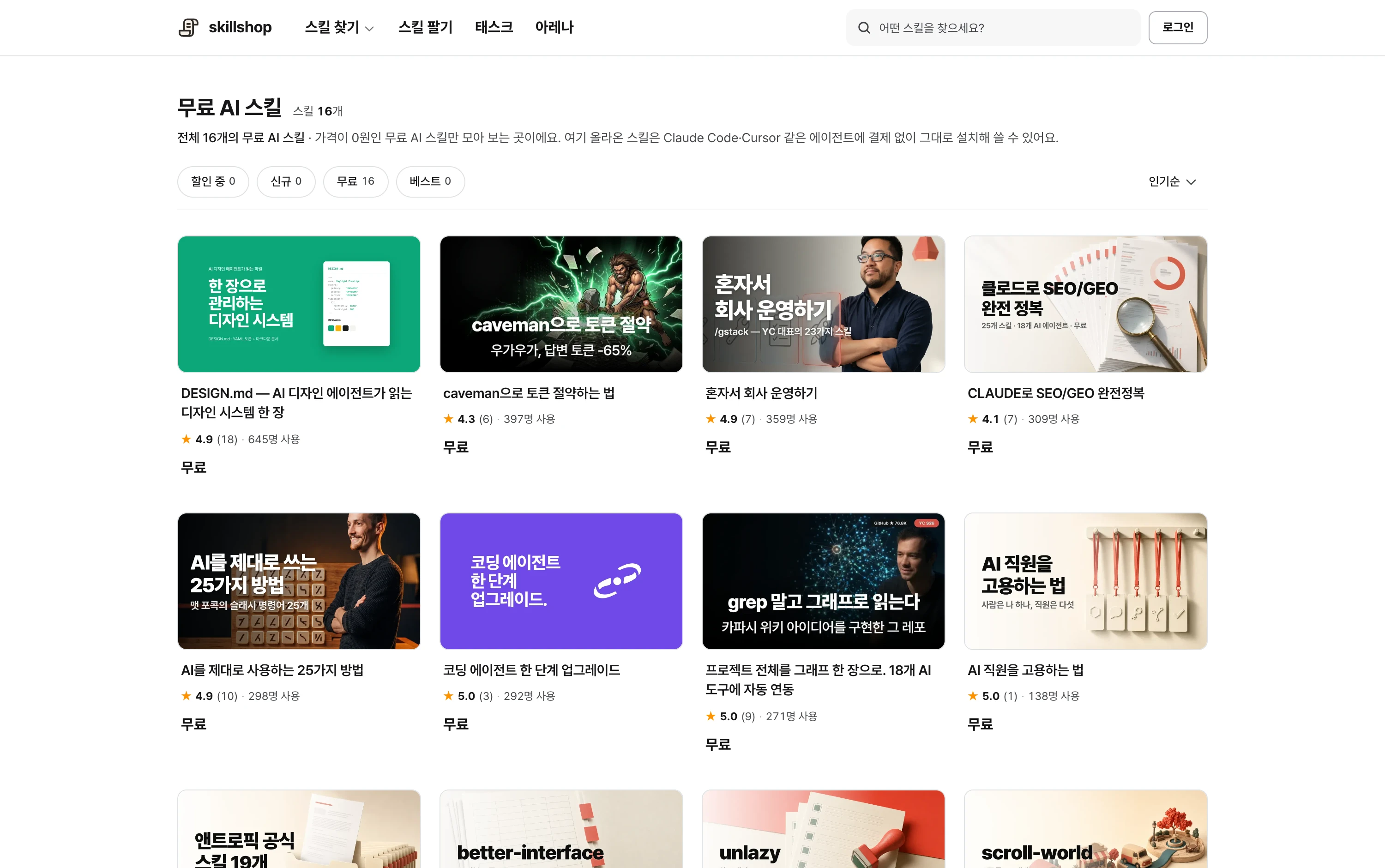
Screenshot of the free-skill catalog. Check the detail page for current availability and terms.
View original Korean screenshot
Should it be personal or project-wide?
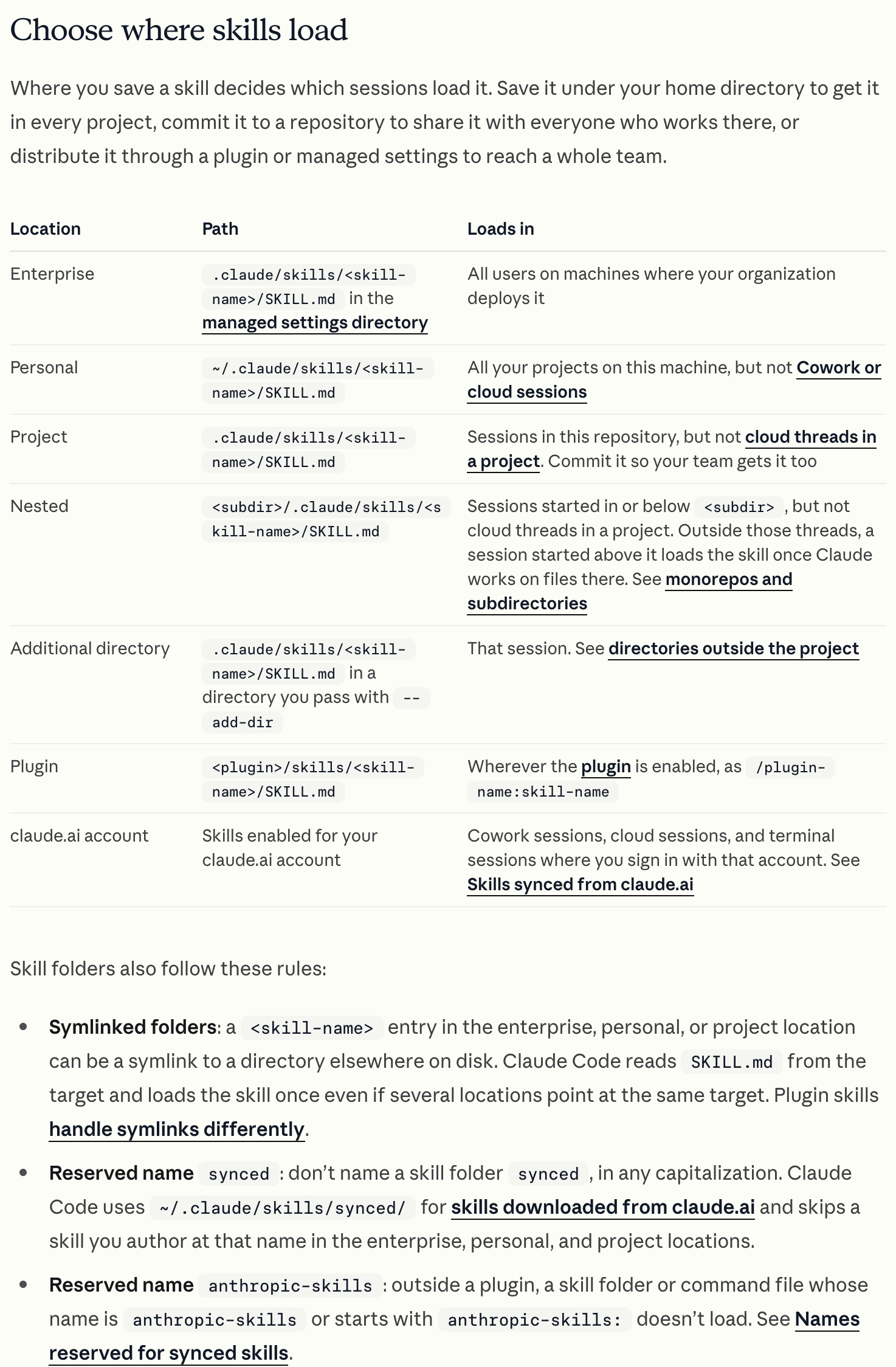
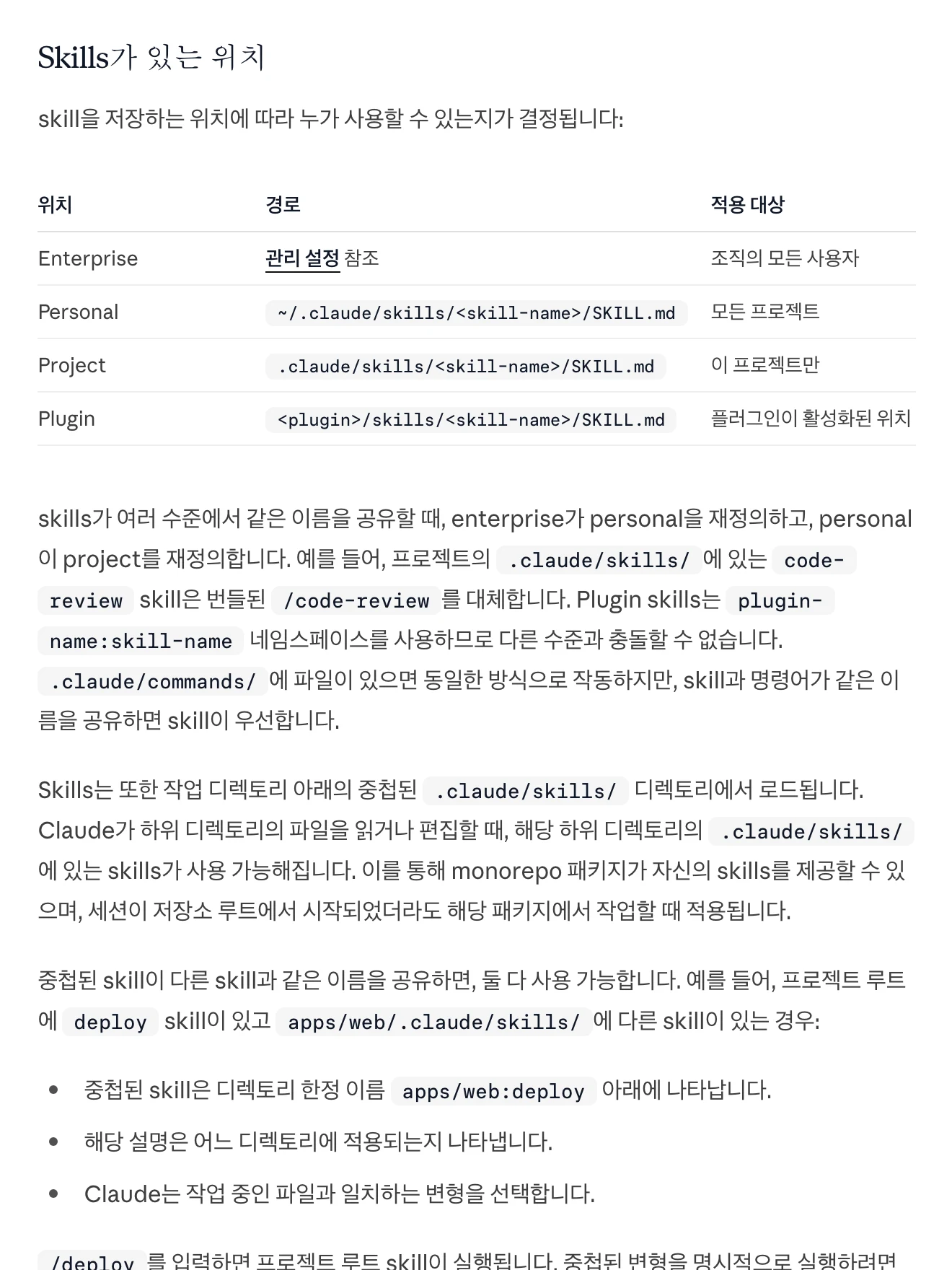
Use ~/.claude/skills for your own work across projects, or .claude/skills to share in the current project. Team skills must also be included in the repository for others to receive them.
Plugins can package multiple skills, agents, hooks and MCP settings. For a first skill, choose the personal or project scope you need.
| Scope | Location or form | Where used | Suitable for |
|---|---|---|---|
| Personal | ~/.claude/skills | Your projects on this computer | Personal work habits |
| Project | .claude/skills | Shared in the repository | Coding rules, deployment or review checklists |
| Plugin | A package of skills and related features | Environments where the package is installed and enabled | Distributing several skills, agents, hooks and MCP settings |
View original Korean screenshot
How do you install a downloaded skill?
If delivered as an archive, extract it and inspect the contents. Move the folder containing SKILL.md beneath the chosen skills path, such as .claude/skills/my-skill/SKILL.md.
Move references and scripts too. SKILL.md may point to other files by relative path, so retain the folder structure.
Claude Code detects ordinary skill-folder changes. If a new skill does not appear, or you just created the skills folder, try restarting the session.
- ~/.claude/skills/Personal skill path
- skill-name/Copy the entire folder
- SKILL.mdSkill instructions
- other filesKeep reference folder structure
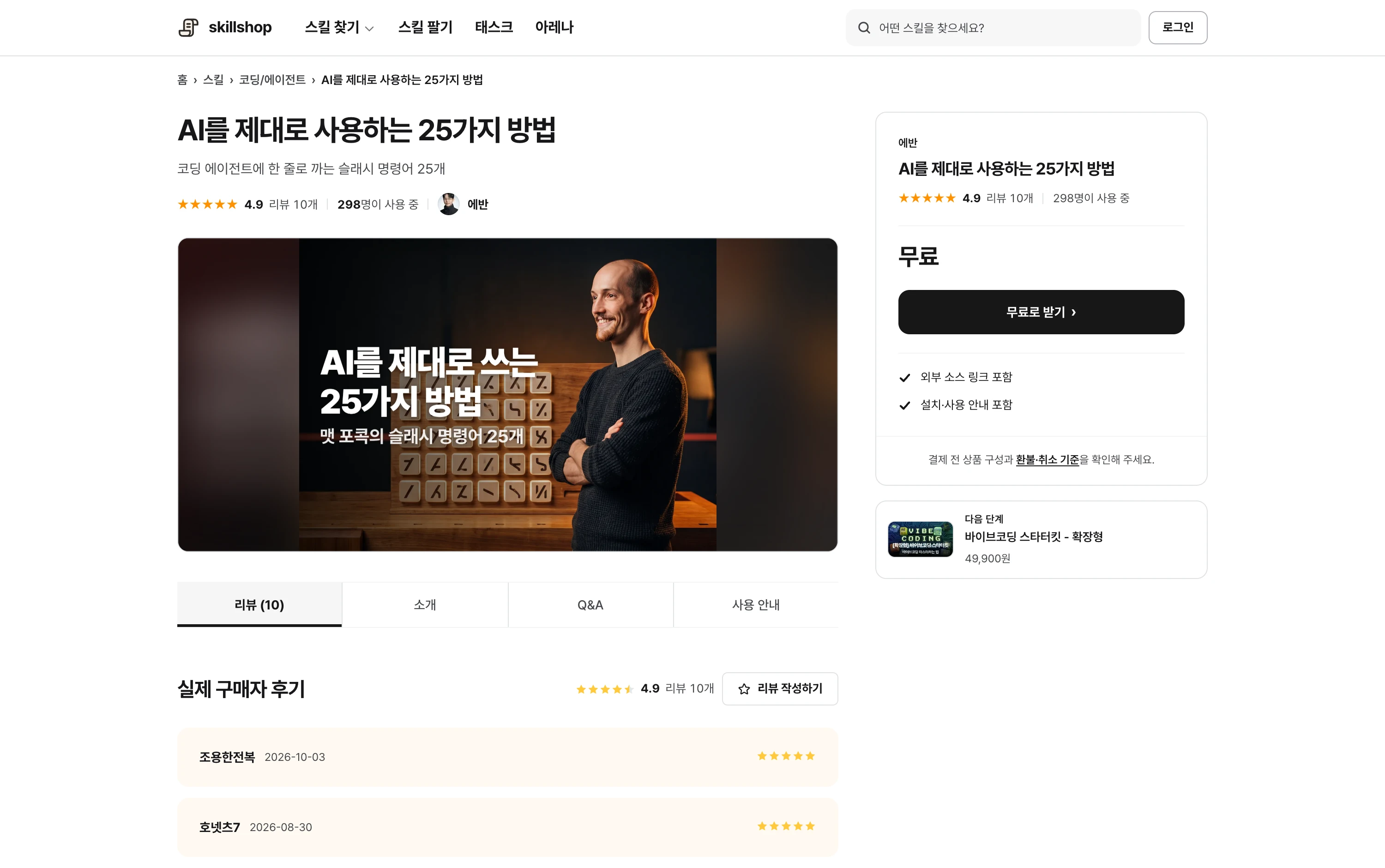
Screenshot of a Skillshop acquisition panel.
View original Korean screenshot
- Extract the archive and inspect SKILL.md and references.
- Move the entire skill folder under the chosen skills path.
- Restart the session if it does not appear.
Check that installation worked
Find the skill by name in the / menu or ask to list available skills. Once it appears, invoke it directly on a small example.
For a meeting-note skill, try a short note and ask it to organize decisions and actions. Check both that the name appears and that the result follows the instructions.
What if the skill does not load?
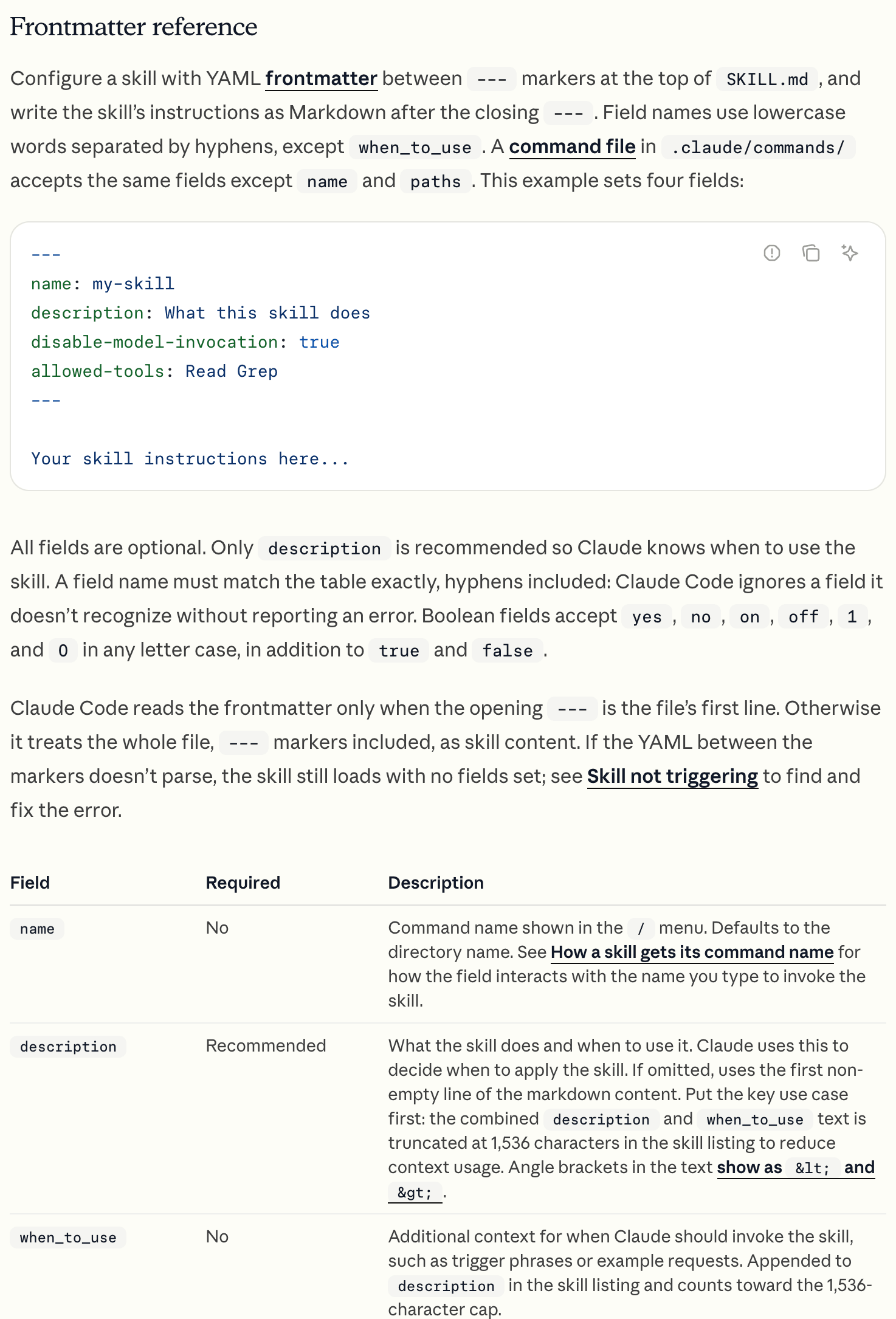
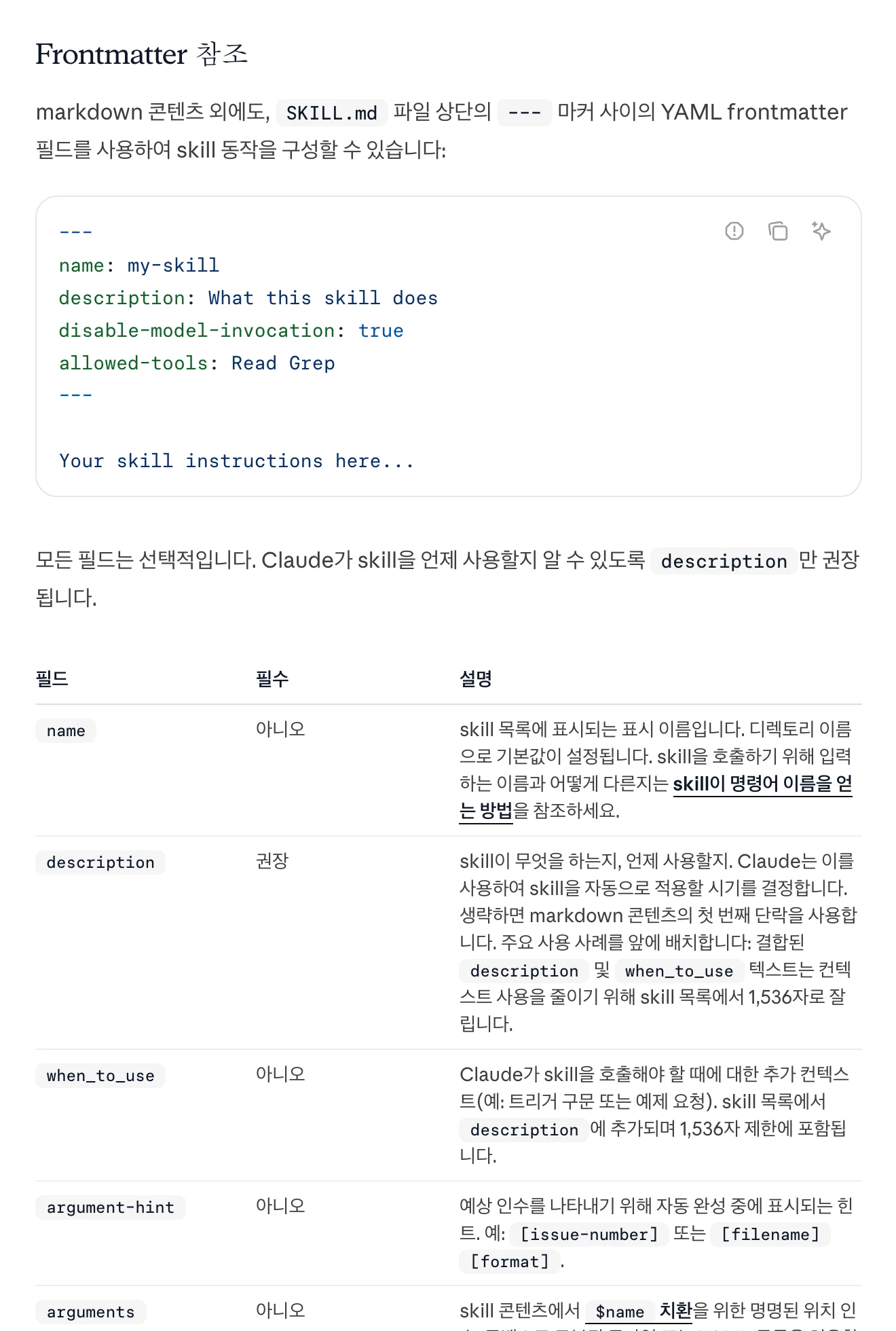
Check file location, the SKILL.md name and the YAML at the top. Look for an extra enclosing folder or a file accidentally saved as .md.txt.
If direct invocation works but automatic selection does not, inspect the description and invocation settings. Describe a use case such as creating or editing React components rather than “writes good code.”
If direct invocation also fails, inspect the error. Organization policies or permissions may restrict it in addition to path issues.
- Description use case
- Automatic invocation settings
- Descriptions of similar skills
- Path and filename
- YAML and folder structure
- Error and policy restrictions
View original Korean screenshot
- Check that the file is named SKILL.md.
- Check the skills/skill-name/SKILL.md path.
- Check YAML delimiters and fields.
- Review the description and automatic invocation settings.
- If it still fails, inspect the error and tool version.
What if several skills are similar?
Similar descriptions can select an unintended skill. Distinguish each task and when not to use it; for important work, invoke the name directly.
Avoid the same name in personal and project locations. Claude Code gives a personal skill priority over a project skill of the same name, so distinguish names or locations when testing team skills.
Archive unused skills separately or adjust invocation settings to keep the list manageable.
What to check when sharing with a team
Include the project’s .claude/skills folder in the repository to share it with teammates. Document required programs, environment-variable names and examples. Do not include secret keys themselves.
Check the seller’s permitted scope before sharing a purchased skill. A private repository does not automatically grant team-wide use or redistribution.
- Skill and references
- Required program guidance
- Examples and review method
- License permits team use
- Public redistribution is allowed
- No secrets or client data are included
Test your first skill on a small task
Choose work with an easily compared result, such as organizing one document or reviewing a short piece of code. Small inputs help separate installation and execution problems.
Use a sample or free skill to learn the format. After inspecting its result, browse the field you need to understand what descriptions and examples help.
Find a category close to the task you want to delegate.
View original Korean screenshot

Screenshot of the Skillshop coding category.
View original Korean screenshot

Frequently asked questions
Where should Claude Code skills go?
Use ~/.claude/skills for your own work across projects or .claude/skills in the repository for team use. Plugins can package multiple skills and related features.
How can I verify installation?
Find the name in the / menu or request a list of skills. Invoke it on a small task and check whether the specified sequence and output format were followed.
Can I share a purchased skill with teammates?
Check the seller’s team-use and redistribution terms first. A private repository does not automatically grant team use. If permitted, include required programs and execution examples.