File language: Not specified
Automated Video Editing
Provide a screen recording to remove silent sections, transcribe and correct captions, and produce a captioned edit.
 에반
-60%$728.62
$293.66
Skill overview
Still spending
six hours editing one lesson?
One click handles it.
Cutting silence and adding captions by hand?
Give it the recording and let it do the work.
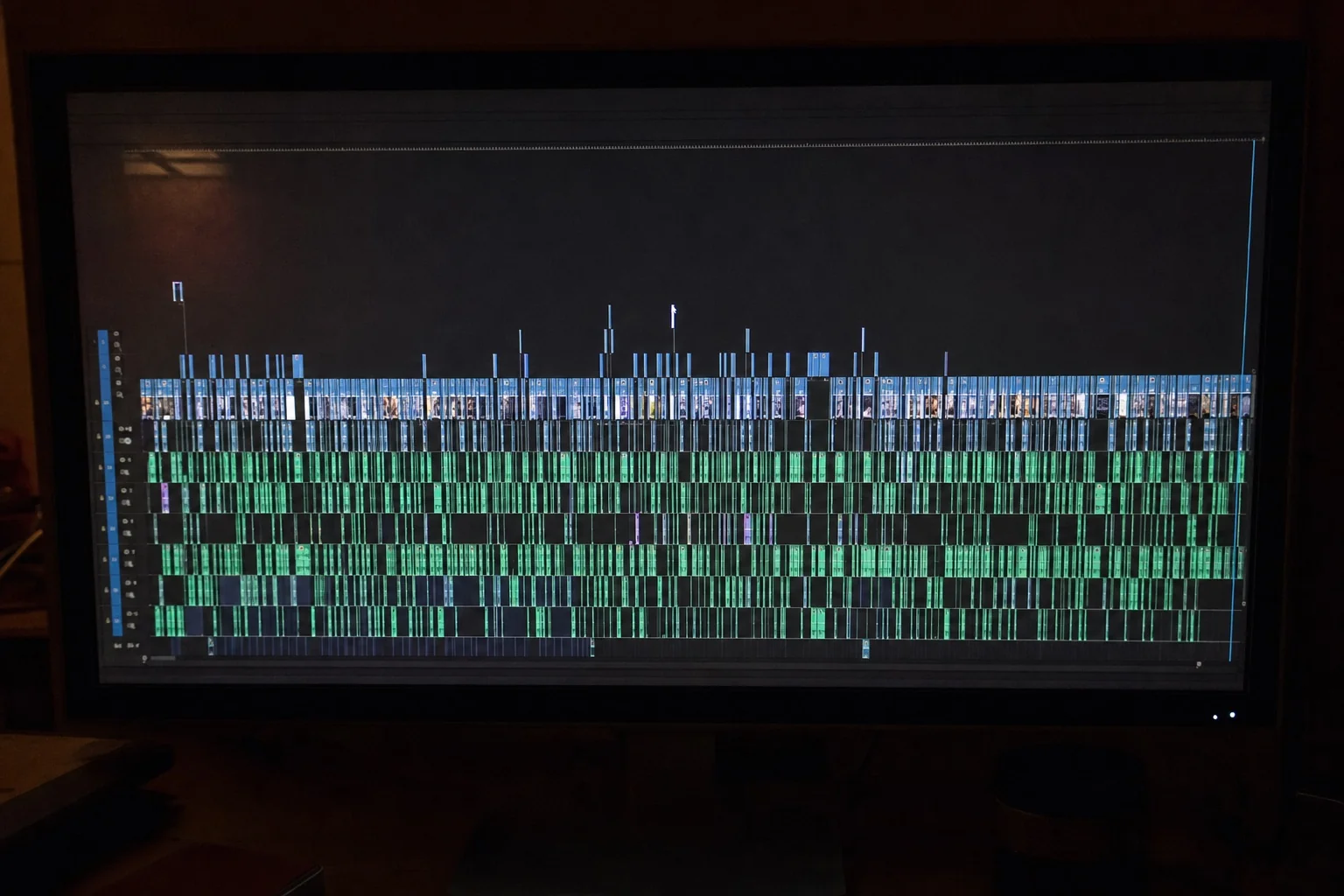
A thirty-minute lesson. Six hours of editing.
Recording is quick. Turning it into a publishable video takes longer.
You're repeating the same work manually.
-
01You're cutting every pause by hand.
A forty-minute lesson has hundreds of silent sections. Finding and cutting them can take longer than recording.
-
02Automatic captions keep getting things wrong.
It mishears Next.js and localhost, so you end up fixing each line manually.
-
03Cutting silence throws captions out of sync.
Remove a quiet section and every later caption shifts. The video and subtitles drift apart.
Your teaching isn't the problem. Repetitive manual editing.
Just record.
Get the edited video in one click.
/youtube-screen-editor
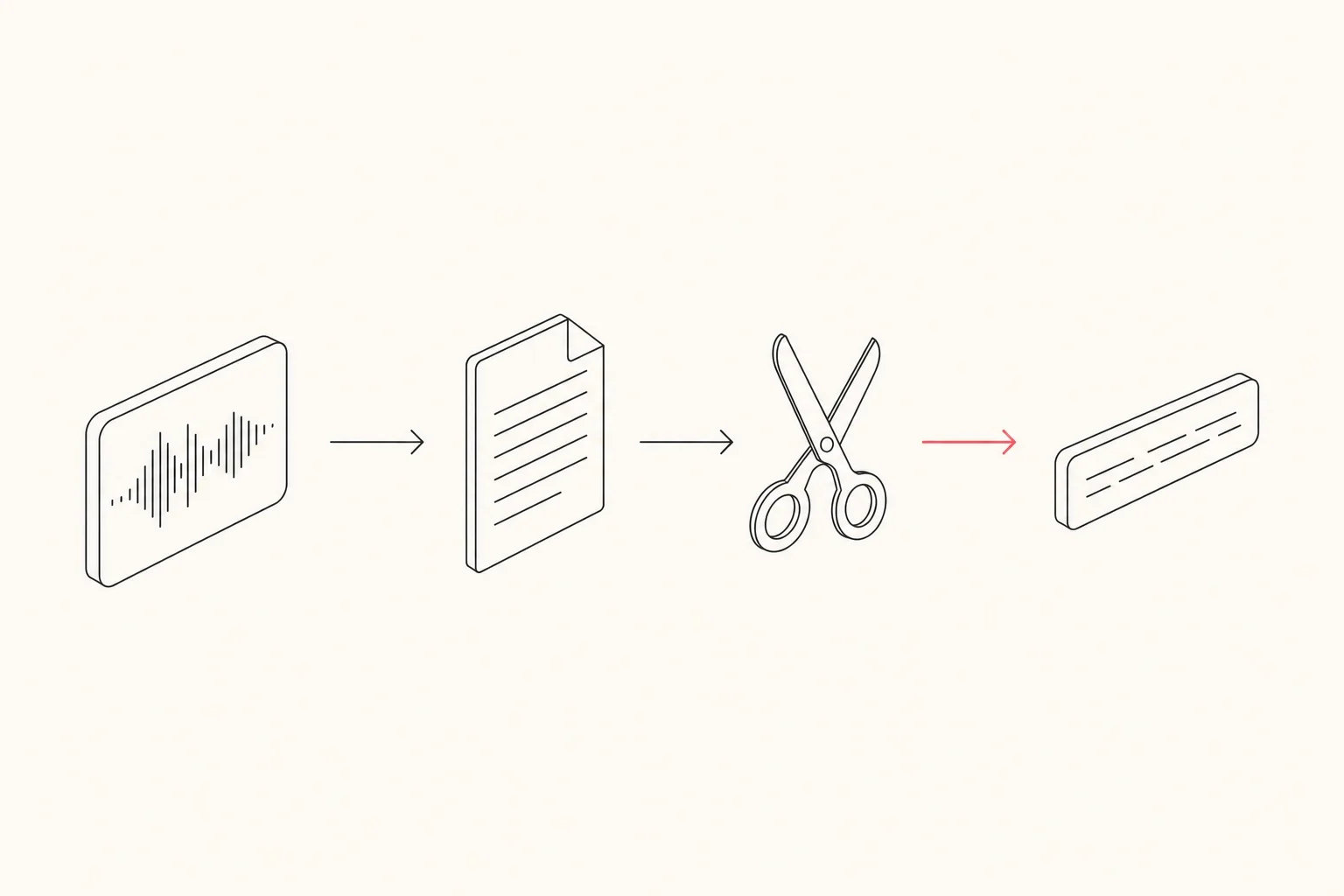
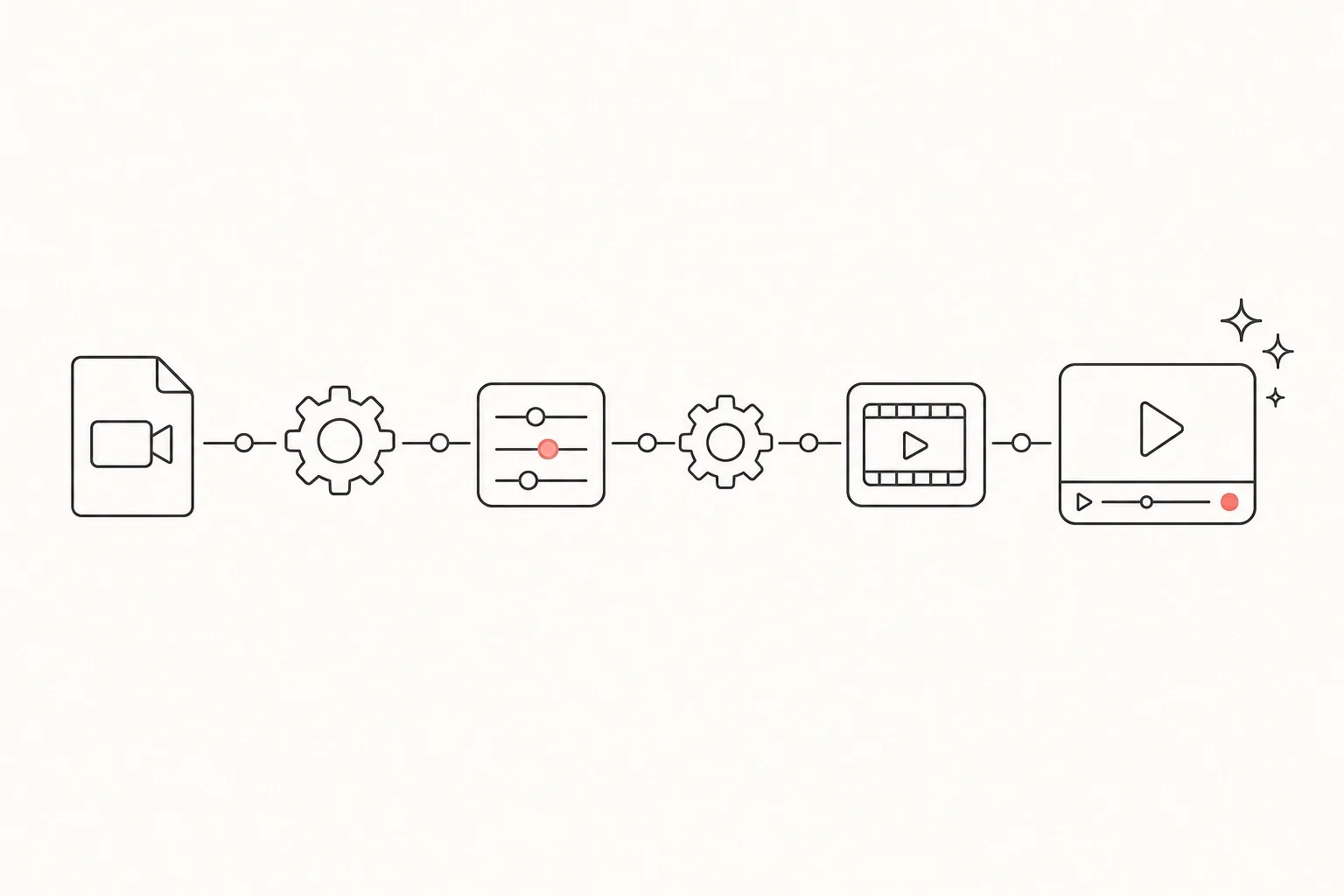
It runs six stages automatically, from audio extraction to captions.
Three jobs handled for you.
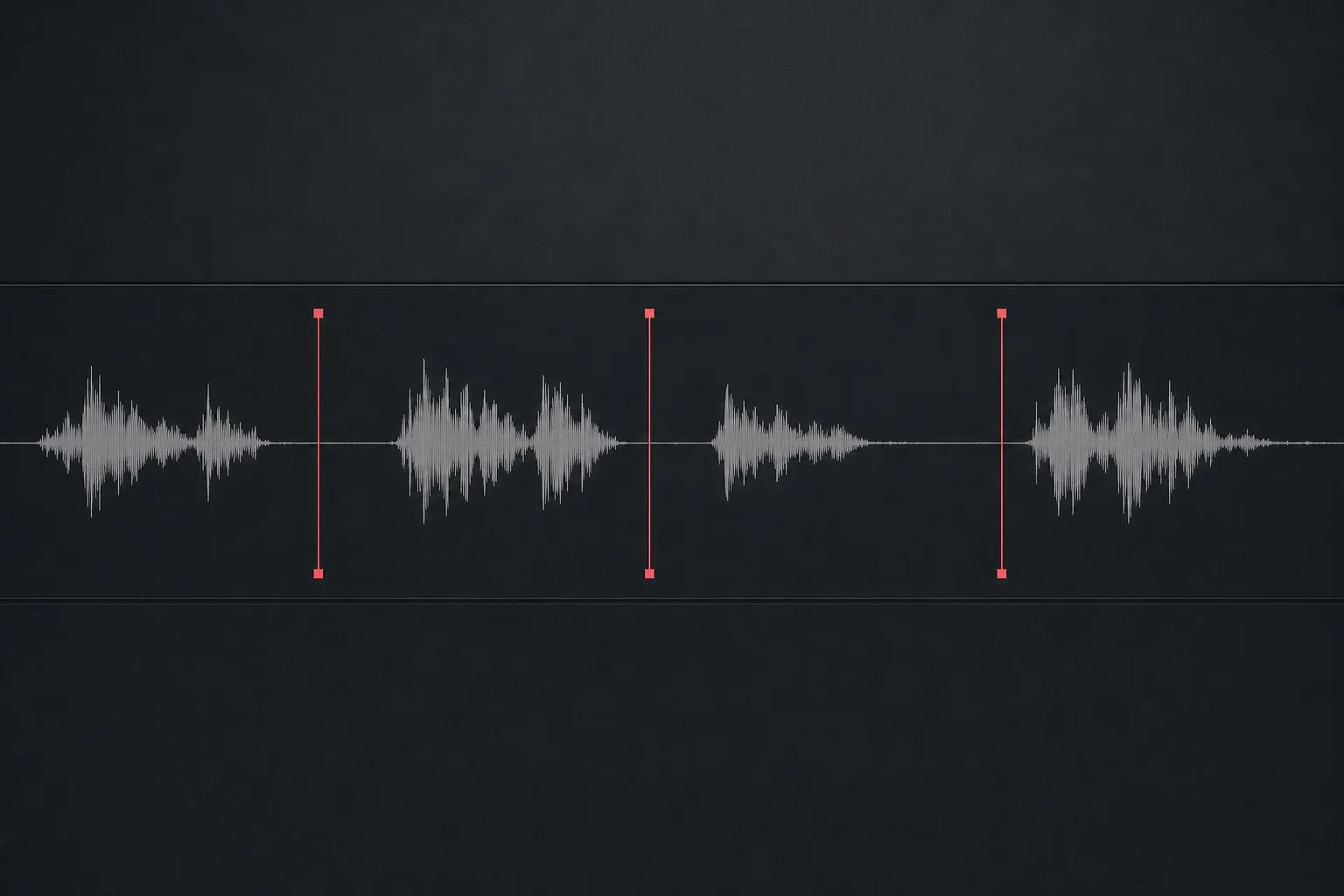
Find and cut the silence
Detect sections below −40 dB for more than 1.5 seconds and remove them. Adjust the threshold for a quiet room or noisy café. Word-boundary checks protect quiet sentence endings from being cut off.
Claude proofreads the captions
Claude corrects transcription errors, tool names and spacing. Long lessons are proofread in 200-word chunks to prevent gaps or truncation. Meaningless fillers such as “uh” and “um” are removed.
Retimed captions on the edited video
After removing silence, caption timestamps are recalculated for the new timeline so they stay in sync from start to finish. The output includes editing code that places captions over the video. Landscape is the default; vertical Shorts are supported too.
Six stages, in order.
Provide one recording and the workflow runs automatically.
Pause, inspect or adjust each stage separately.
1. Extract audio        — Separate the audio from the video
2. Transcribe captions      — Turn speech into text
3. Proofread captions          — Correct transcription errors with Claude
4. Detect and remove silence     — Cut out quiet sections
5. Recalculate caption timing   — Sync captions to the new timeline
6. Generate the edit        — Code for a video with captions overlaid
Here's how the captions change.
The same lesson, transcribed automatically and then proofread. Tool names are a frequent source of errors.
"“Max Jace” with “local lost” running on it, “boat section” added, uh let's check it.”
Errors corrected by proofreading
"Next.js with localhost running on it, bot detection added, let's check it.”
Frequently asked questions.
Reclaim those six editing hours.
One click handles it.
Q&A 1
- Answered깜***
From purchase to your first result
Check what you need in the guide, then start a first task with your own materials.
Open the guide for your skill
Open the guide from the payment confirmation or your library, and check the accounts and materials you need.
Get the skill and follow its setup guide
Download the skill ZIP and follow the guide to set it up in your agent. Follow any setup steps for additional tools.
Try a small task with your own materials
Start with one topic or item. Describe the result you want and check whether it works for your needs.
Ask in the skill room if you get stuck
Share the task, the step where you got stuck, and any error message in the buyer community. You can return to the guide from your library.
Example first request
“I’d like to try a first task with Automated Video Editing. Tell me what materials and setup I need, then help me start with a small task.”
Purchase information
Before you buy
- Materials
Skill ZIP
Open purchased materials from your library.
- Requirements
You need an AI agent and an account to run the skill.
Check the product description for supported agents and required services.
- Additional costs
External AI services may have separate subscription or usage fees.
Ask the seller about required plans and expected usage before buying.
Warranty and support
Review the tested environment and support period.
- Tested environment
- Tested with Claude Code and Codex. Operation with other agents or CLIs is not guaranteed.
- Free patch period
- One year from upload (2026-05-30), through 2027-05-30. If model or CLI changes break the skill during this period, we will fix it at no charge.
- Access period
- Available to download immediately after payment, and available to download and view again in your library for 11 months from the payment date. Download and viewing access ends after this period.
- If we cannot fix it
- If we cannot fix it within the free patch period, we refund an amount proportional to the remaining period.
- Refund terms
- Digital content is provided immediately after payment and is not refundable after purchase. This does not exclude a refund if it differs from the description or we cannot fix it within the free patch period.
- Last verified
- 2026-08-25(skill's last updated date)