How to use the ChatGPT agent: Work after agent mode
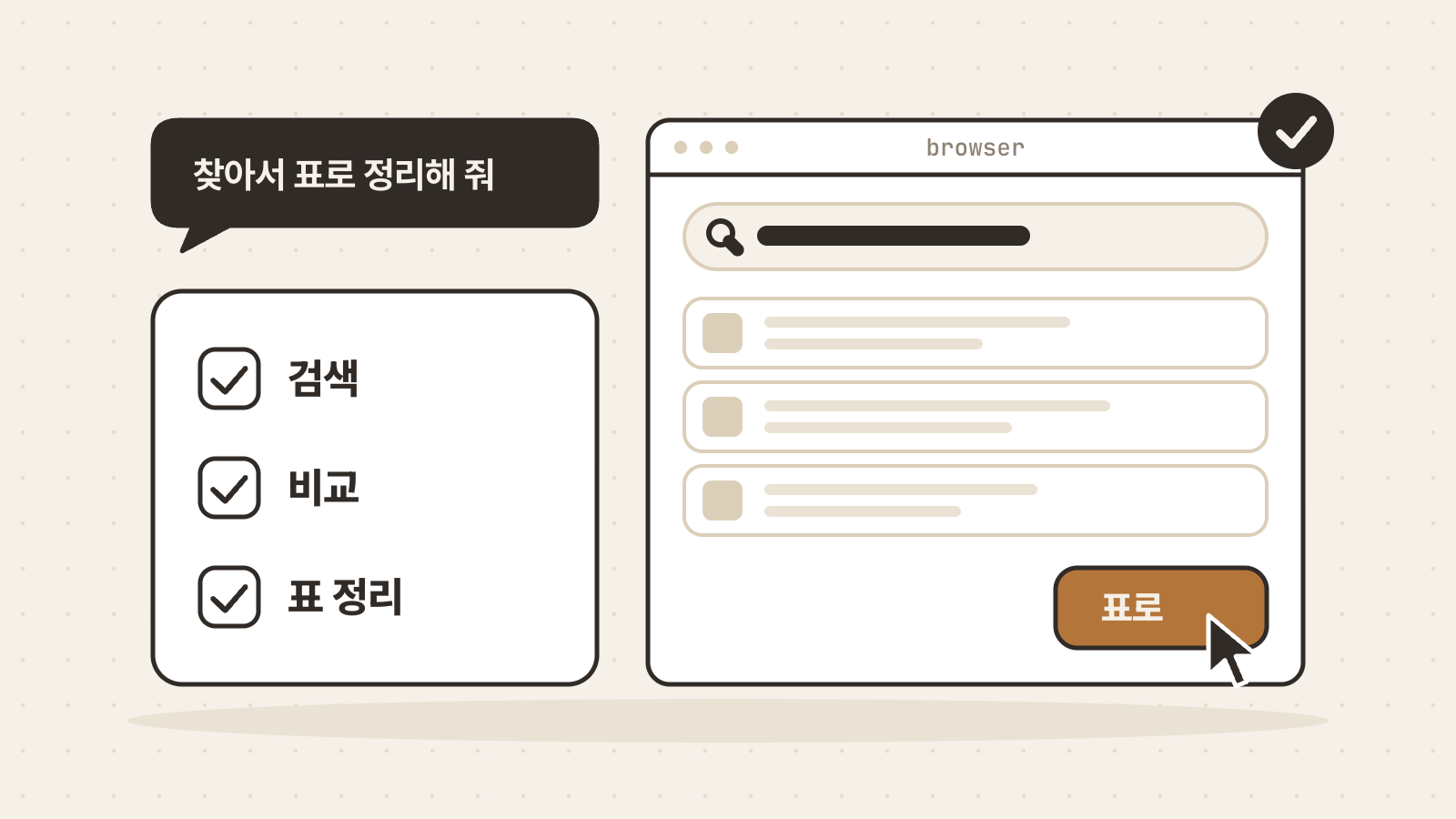
ChatGPT agent mode has been retired, and Work in ChatGPT now handles multi-step tasks. Work finds information, creates files and carries out steps on websites, then hands back a result you can review. This guide covers how to start Work, the cloud browser, scheduled tasks, and the plugins and skills that replace GPTs.
Translated from Korean. View original. Some screenshots are available in Korean only.
In this guide
- Why can't I find ChatGPT agent mode?
- How do Chat, Work and Codex differ?
- How do I start Work?
- What should I hand over, and how should I ask?
- Can it click and type on websites for me?
- How do I make it repeat on a schedule?
- How do I build my own GPT agent now?
- What part do skills play for an agent?
- What should I check before handing work over?
- Frequently asked questions
- Sources
Why can't I find ChatGPT agent mode?
The OpenAI Help Center article on ChatGPT agent opens by saying that ChatGPT agent is no longer available. It points longer multi-step tasks to ChatGPT Work and browser workflows to the cloud browser article. Guides that tell you to pick “agent mode” from the tools menu or type “/agent” describe the product before it was retired.
The work itself did not go away. Research, documents and spreadsheets, and clicking and typing on websites all moved to Work. What changed is where you start and how usage is counted. Agent mode had a monthly message limit for each plan, while Work shares usage and credits with Codex.
- Chosen from the tools menu or by typing “/agent”
- A monthly message limit for each plan
- No longer available
- Choose Work instead of Chat in ChatGPT
- Shares usage and credits with Codex
- Works with the cloud browser and scheduled tasks
How do Chat, Work and Codex differ?
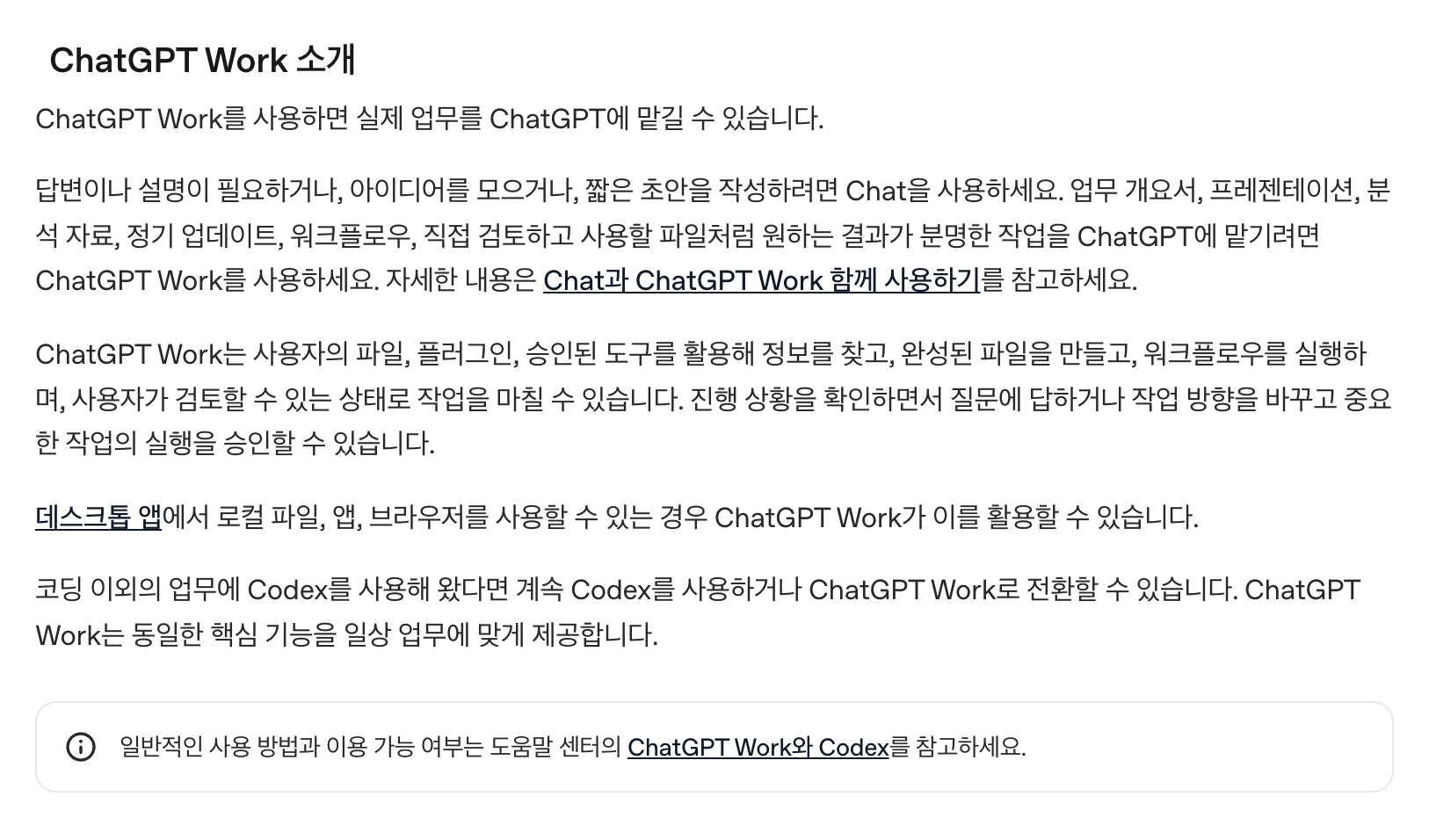
OpenAI describes ChatGPT in three parts. Chat is the fast conversation for questions, search and ideas. Work is an agent that carries out longer, multi-step work and produces a finished deliverable. Codex is built for software development: writing code and running tests.
Choose by the result you need. For an answer, an explanation or a short draft, Chat is enough. For a file you will review and reuse, such as a presentation, a comparison sheet or a report, use Work. Longer and more complex tasks use more credits, so simple questions do not need Work.
| Mode | Good for | Example request |
|---|---|---|
| Chat | Questions, search, brainstorming, short drafts | Make this email sentence more polite |
| Work | Research and analysis; documents, spreadsheets, presentations and reports | Turn the attached material into an eight-slide draft deck |
| Codex | Writing and debugging code, running tests, reviewing changes | Find and fix the failing tests in this repository |
The introduction to Work in the official documentation. Check the linked page for the current text.
View original Korean screenshot
How do I start Work?
Open ChatGPT on the web or in the mobile app and select Work. Start a new chat or open an existing project, add the files it should use, then describe the task or the deliverable you want. On mobile you choose Chat or Work from a dropdown. In the desktop app, select ChatGPT in the menu and use the switch to choose Work.
The OpenAI Help Center says Work on the web and mobile is available on supported paid plans. Work on the web and mobile runs in the cloud, so it cannot open files on your computer directly. To work with folders on your computer, open only the folders you need in the desktop app. If you do not see Work, check that your plan includes it and that your workspace admin has not turned it off.
What should I hand over, and how should I ask?
The OpenAI documentation names four kinds of task that suit Work: tasks that need several sources, tools or steps; tasks that would take you significant time; work whose result you will review, edit or reuse; and work that repeats or needs monitoring. To begin, pick a task with a clear outcome, a few reference materials and a result you can check yourself.
Put five things in the request: the outcome you want, the sources or plugins to use, the constraints, the criteria the result must meet, and the point where it should stop for your review. Setting the scope, for example “use only these sources” or “stop before sending anything”, cuts both wrong turns and unnecessary usage.
Review the attached survey results file and the three interview notes.
Pick the three problems customers mention most and create an eight-slide draft deck.
Use only the attached material, and flag any claim with weak evidence.
Show me the draft before you finalize it.- Make a customer research deck
- No sign of which sources to use
- No point at which to stop
- States the length and the content
- Sets the scope of the sources
- Stops at a draft for review
Can it click and type on websites for me?
Yes. Work has a cloud browser: a dedicated browser running on a separate computer in the cloud that reads pages, clicks buttons and fills in forms. You do not turn it on. ChatGPT uses it when needed, and uses a connected app or plugin first when that can finish the job directly. According to the OpenAI Help Center it is available in supported regions in Work on paid plans, excluding Free and Go.
It asks you at the moments that matter. It requests permission before visiting a new website, and it asks in chat before a hard-to-reverse action such as confirming a booking or paying. When a site needs a sign-in, a secure sign-in form appears. The model cannot see the username and password you enter there, and ChatGPT does not store them. Some sites block automated access, so you may need to finish the last step yourself.
How do I make it repeat on a schedule?
Use scheduled tasks. Work can run a task once, repeat it on a schedule or watch for changes. Ask for something like “every Monday morning, summarize last week's support emails”, then pause, edit or delete the task under Scheduled.
The number of tasks you can keep active depends on your plan. Free can schedule one-time tasks or recurring tasks that run at most once a day, and supported paid plans can run a task as often as once an hour at an exact time. Tasks triggered by an event, such as a new email or Slack message, need Work and a plan such as Plus, Pro or Business, and cannot be created on Free or Go.
| Plan | Scheduled tasks you can keep active |
|---|---|
| Free, Go | 3 |
| Plus | 5 |
| Business, Edu | 10 |
| Pro, Enterprise | 15 |
How do I build my own GPT agent now?
Building a custom GPT used to be the easiest route. That has changed. According to the OpenAI Help Center, personal accounts on Free, Go, Plus and Pro can no longer create or publish new GPTs, and custom GPTs are scheduled to retire on December 11, 2026. GPTs you already made keep working until that date.
Plugins take their place. A plugin bundles skills, which are reusable instructions, with apps that connect outside services. Install Plugin Creator from the plugin directory, mention it with “@” in a chat and describe a task you do often, and you can build one without code. To move an existing GPT, open My GPTs and choose Migrate to plugin. If you only need to keep instructions and reference files together for ongoing work, a project is enough. What you can use depends on your plan and workspace.
| In a GPT | After moving to a plugin |
|---|---|
| Instructions | Become a skill in the plugin |
| Knowledge files | Are copied as reference files |
| Connected apps | Are added to the plugin as apps |
| Custom actions | Do not transfer. Reconnect them through an app or a custom MCP server |
| Selected model | Does not transfer |
What part do skills play for an agent?
If the agent is the pair of hands, a skill is the method you put in them. OpenAI describes skills as reusable, shareable workflows that help ChatGPT complete specific tasks more consistently. A skill can contain instructions, examples and code, and ChatGPT uses it automatically when its description matches the request. You can also pick one with “@”.
A skill is a folder with a SKILL.md file, and that file must include a name and a description. Claude Code and Codex read the same format, so a method you write down once can be reused across agents. According to the OpenAI documentation, standalone skills work in the ChatGPT desktop app and Codex, and skills inside plugins also work in Chat and Work on the web and mobile. The Skills tab, where you create and manage skills inside ChatGPT, is offered to workspace plans such as Business, Enterprise and Edu.
What should I check before handing work over?
An agent does not stop at writing an answer. It acts. So begin with tasks whose result you can check yourself, and at sensitive steps read the website address and the confirmation request on screen. OpenAI also says its safeguards cannot remove every risk, and asks you to review sensitive steps and important results yourself.
Keep an eye on usage too. Work does not have a fixed message count. Usage depends on the model and the size of the task. Check your remaining usage before a large task, and send simple questions to Chat to save it.
- Never paste passwords, security codes or payment details into the chat. Enter sign-in details only in the secure sign-in form
- Stop the task if ChatGPT opens the wrong site or uses the wrong information
- Check the content and the sources before you use a result
- Write the stopping point into the request, such as “stop before sending”
Frequently asked questions
Can I still use ChatGPT agent mode?
The OpenAI Help Center says ChatGPT agent is no longer available. Use Work in ChatGPT for multi-step tasks, and the cloud browser in Work for tasks on websites.
Is Work available on the free plan?
The OpenAI Help Center says Work on the web and mobile is available on supported paid plans. The OpenAI pricing documentation also lists GPT-6 Luna at standard speed in the desktop app for Free and Go, and marks it as rolling out. The cloud browser is available on paid plans, excluding Free and Go.
Will the agent pay for things on its own?
No. The cloud browser is designed to ask for confirmation in chat before a hard-to-reverse action such as confirming a booking or paying. Depending on the site, you may have to complete the last step yourself.
What happens to the GPTs I already made?
Existing GPTs keep working until the retirement date, December 11, 2026. To keep using one, open My GPTs and migrate it to a plugin. Instructions become a skill and knowledge files become reference files. Custom actions do not transfer automatically.
Sources
- ChatGPT agent (OpenAI Help Center)
- ChatGPT Work and Codex (OpenAI Help Center)
- Using cloud browser in ChatGPT (OpenAI Help Center)
- Scheduled tasks in ChatGPT (OpenAI Help Center)
- Custom GPT retirement and migration FAQ (OpenAI Help Center)
- Creating and editing GPTs (OpenAI Help Center)
- Plugins in ChatGPT (OpenAI Help Center)
- Skills in ChatGPT (OpenAI Help Center)
- Build skills (OpenAI documentation)
- Pricing (OpenAI documentation)